So a couple of days ago, I documented how I compiled Wine 1.9.21 with Retina Mode from scratch on macOS Sierra. After that I though I might as well figure out how to bundle all these files into a .app bundle, which Finder presents as if it were a single file.
Turns out to be quite easy:
- Create the folder hierarchy for the bundle.
- Create two required files (
Info.plistandPkgInfo) and, optionally, an icon. - Copy all the compiled Wine files into the folder created.
- Create a script to start Wine.
Create the bundle
Choose a directory to create the package and run these in shell:
mkdir -p Wine.app/Contents/MacOS
mkdir -p Wine.app/Contents/Resources
Create required files
In the folder Contents you must:
- Create a file called
PkgInfocontainingAPPL????. - Create a file called
Info.plistcontaining:
<?xml version="1.0" encoding="UTF-8"?>
<!DOCTYPE plist PUBLIC "-//Apple//DTD PLIST 1.0//EN" "http://www.apple.com/DTDs/PropertyList-1.0.dtd">
<plist version="1.0">
<dict>
<key>CFBundleExecutable</key><string>startwine</string>
<key>CFBundleIconFile</key><string>wine.icns</string>
<key>CFBundleIdentifier</key><string>com.myByways.wine</string>
<key>CFBundlePackageType</key><string>APPL</string>
<key>CFBundleVersion</key><string>1.9.21</string>
<key>CFBundleSupportedPlatforms</key>
<array><string>MacOSX</string></array>
<key>LSApplicationCategoryType</key>
<string>public.app-category.utilities</string>
<key>LSMinimumSystemVersion</key><string>10.6</string>
</dict>
</plist>
You can, and should, modify items as you see fit, as documented under the section Recommended Keys for Cocoa Apps and Launch Service Keys:
- CFBundleExecutable - the executable to run, in the
MacOSfolder, but can also be a bash script! - CFBundleIconFiles - the icon, either in ICNS or PNG (I think) formats.
- CFBundlePackageType - don't change this, because
AAPLindicates it's an application.
Optionally, create an icon file called wine.icns in the Resources folder. What I did was:
- Download the wine_logo.svg from WineHQ.
- Edit the icon in GIMP to make it 1024x1024 (square) and export as PNG.
- Convert the PNG into the icns format. I used Iconie (free, Mac App Store).
- Copy the resulting ICNS file to
Resources.
Or,
- If you don't want to bother, just leave this step off. The system will use a standard icon.
- You could also choose and use a standard icon included with macOS e.g.
GenericApplicationIcon.icnsat/System/Library/CoreServices/CoreTypes.bundle/Contents/Resources/. - Or, download the one I created (and give credit where it's due, since I only took the one made available at WineHQ).
Click the icon to download wine.icns:

Create the bundle
Next, copy the Wine files to the bundle. In my previous guide on building Wine, the compiled outputs were put in ~/Downloads/wine/usr. Just copy the contents within this folder to Resources. You should end up with a folder hierarchy like this:
- Wine.app
- Contents
- MacOS
- Resources
- bin
- include
- lib
- share
- Contents
You can choose to remove files that are not required, e.g. includes, man pages, .old files, or documents (I noted some .html files). I also moved the files from sbin to bin so that a single PATH would suffice.
Also, I don't have a "Mac Developer" certificate, so can't "code sign". This means you may get Gatekeeper warnings. Just FYI, Apple's recommendation is to use MacOS, Frameworks and Plugins folders for code and sign them, but here, everything is in Resources (i.e. expected to be "data" files) so there is no need to sign them.
Create a script to start Wine
Create a simple script called startwine in the MacOS folder. I did not use the .sh extension and it still worked:
#!/bin/bash
cd "$(dirname $0)"
cd "../Resources/bin"
export PATH="$PWD":$PATH
exec winefile C:\\
The first cd is to go to actual directory where startwine is located, since the current path may be anything. The second cd will move to where the Wine executable resides, i.e. bin, which must be added to PATH for Wine to find its dependencies. A bit of a hack, I know.
You need to set the executable bit for this file, or else you'll get an error "The application "Wine.app" can't be opened." when trying to run the app:
chmod +x startwineNow you can double-click Wine.app and it'll run the Wine file manager! You could change this to explorer (i.e. wine explorer) or command console (wineconsole).
Problems stopping Wine
I encountered a few instances where Wine.app was still running after closing all windows and I could not Quit Wine:
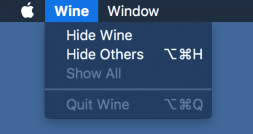
It would seem the program I ran needed various background services, which Wine started. But Wine does not stop them, and these orphans sometimes prevent Wine.app from closing cleanly.
To check for running services, run ps
ps -e | grep -e C: -e wineserverThis gives a list like this:
 1941 ??         0:00.04 C:\windows\system32\services.exe
 1945 ??         0:00.03 C:\windows\system32\plugplay.exe
 1947 ??         0:00.47 C:\windows\system32\explorer.exe /desktop
 2039 ??         0:00.12 C:\windows\system32\svchost.exe -k imgsvc
 2049 ??         0:20.20 C:\Program Files\Paint.NET\PaintDotNet.exe
 3328 ttys000    0:00.00 grep --color=auto -e C: -e wine
Stop these services with winserver -k.
If that fails, then kill each process manually by Process ID, e.g.:
kill -9 1941 1945 1947 2039 2049Problems with Windows applications
I have run a few apps and found some problems, but it's best you check with the Wine AppDB. Lots of apps don't work, and you can't expect perfect operation! And as mentioned before, icons and text may appear off due to Wine's experimental Retina Mode.
In my case, I did a quick test with a few 32-bit apps:
- Word 2010
- Excel 2010
- Powerpoint 2010 - needed
riched20to be(native, builtin)as described in the Wine AppDB:- Run
winecfg(Wine Configuration) and click the Libraries tab. - In the New override for library combo box, type riched20
- Press Add.
- You should see riched20 (native, builtin) in the list, but if not, Edit it and select Native then Builtin.
- Run
- Notepad++
- Paint.Net 3.5.11 (note: version 4 and above do not work) - installer will have an error (believe it's when trying to optimzie .NET) but complete; zooming does not update until scrolled; crashes on exit.

Final words
If you have made it this far, congratulations! It was really quite a task for me to get to this point, and hopefully it'll be much smoother for you!
I have done lots more, like:
- Scripts to download, compile and re-link Wine and its dependencies.
- A very cool version of
startwinethat pops up a menu of available Wine Prefixes (i.e. the folder from which to run Wine's "virtual"C:\Windows). - And a
killwinethat does what I described above automatically.
But, I honestly don't know if anyone would be interested, since I barely test anything. All I know is it works for me!
Update 30 Oct 2016: Added winserver -k which stops background services (most of the time).